
- Kom i gang som agent
- 1. Få opprettet agent-bruker
- 2. Logg inn
- 3. Min side — oversikt over bookinger
- 4. Legg inn en ny agentbestilling
- 5. Endringer, avbestillinger og spørsmål
- Getting started as an agent
- 1. Getting an agent account
- 2. Logging in
- 3. My page — booking overview
- 4. Placing a new agent order
- 5. Changes, cancellations and questions
Kom i gang som agent #
Som agent kan du legge inn bestillinger på vegne av kunder hos destinasjonen, og få oversikt over alle bookingene du har registrert.
1. Få opprettet agent-bruker #
Agentkontoen opprettes av destinasjonen (for eksempel reiselivsbedriften eller destinasjonsselskapet du skal booke hos). Ta kontakt med destinasjonen og be dem opprette en agentbruker til deg. Du får da tildelt et brukernavn — vanligvis e-postadressen din.
2. Logg inn #
Logg inn med brukernavn og passord. Huk av «Husk meg» om du vil forbli innlogget på denne maskinen.
Gå til destinasjonens agent-side: https://{cid}.admin.cloudbooking.io/agent
{cid} er destinasjonens ID i Cloud Booking — destinasjonen oppgir dette når de oppretter agentbrukeren din, eller du finner det i lenken de sender deg.
Eksempel: https://booktech.admin.cloudbooking.io/agent
Første gang: Du har ikke passord ennå. Klikk på «Glemt passord», skriv inn brukernavnet ditt (som regel e-postadressen) og trykk Send. Du mottar en e-post med en engangslenke — trykk på lenken for å opprette passordet ditt.
3. Min side — oversikt over bookinger #
Etter innlogging kommer du til «Min side for agenter». Her ser du en tabell over alle bookinger du har lagt inn, med status, bookingnummer, produkt, gjester, antall, periode, beløp og kommentar.
4. Legg inn en ny agentbestilling #
- Trykk på knappen «Agentbestilling».
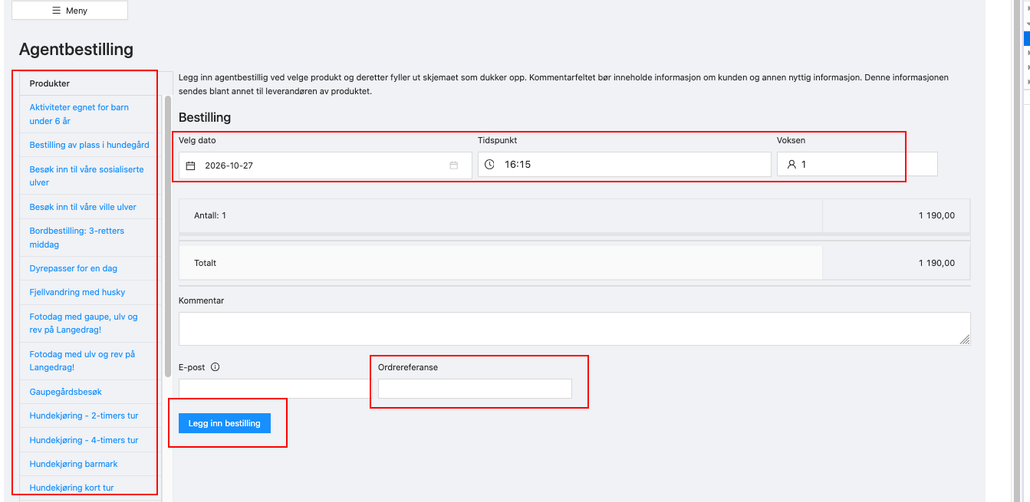
- Velg produkt i listen til venstre. Det er kun produktene destinasjonen har gjort tilgjengelig for agenter, og som er bookbare, som vises i listen. Savner du et produkt, ta kontakt med destinasjonen.
Et skjema dukker opp — fyll inn dato, antall personer og øvrige felter. - Fyll ut feltene nederst:
- Kommentar: Skriv inn informasjon om kunden og annen nyttig informasjon. Denne sendes blant annet til leverandøren av produktet.
- Booking e-post: E-postadressen til kunden. Legger du inn en e-postadresse her, sendes det også ordrebekreftelse til denne adressen.
- Ordrereferanse (obligatorisk): Fyll alltid inn deres interne referanse, f.eks. deres eget ordre- eller kundenummer. Ordrereferansen vises på fakturaen som sendes til dere som agent, og gjør det enkelt å koble faktura mot riktig kunde/bestilling hos dere.
- Trykk «Legg inn bestilling». Du får en bekreftelse på skjermen med bookingnummer, og bestillingen dukker opp i oversikten på Min side.
5. Endringer, avbestillinger og spørsmål #
Det er ikke mulig å endre eller avbestille en booking selv i agentvisningen. Hvis du har spørsmål, eller må endre eller avbestille en booking du har lagt inn, tar du kontakt direkte med destinasjonen. Oppgi bookingnummeret — du finner det i oversikten på Min side.
Getting started as an agent #
As an agent you can place bookings on behalf of your customers at the destination, and keep track of all the bookings you have registered.
1. Getting an agent account #
Your agent account is created by the destination (the travel company or destination you will be booking with). Contact the destination and ask them to create an agent user for you. You will be given a username — usually your email address.
2. Logging in #
Log in with your username and password. Tick «Remember me» to stay logged in on this device.
Go to the destination’s agent page: https://{cid}.admin.cloudbooking.io/agent
{cid} is the destination’s customer ID in Cloud Booking — the destination will give you this when they create your agent account, or you’ll find it in the link they send you.
Example: https://booktech.admin.cloudbooking.io/agent
First time: You don’t have a password yet. Click «Lost password», enter your username (usually your email address) and press Send. You will receive an email with a one-time link — click the link to set your password.
3. My page — booking overview #
After logging in you land on «My page for agents». Here you see a table of all bookings you have placed, showing status, booking number, product, guests, count, period, amount and comment.
4. Placing a new agent order #
- Click the «Agent order» button.
- Select a product in the list on the left. Only products the destination has made available to agents, and that are bookable, are shown in the list. If a product is missing, contact the destination.
A form appears — fill in date, number of guests and the other fields. - Fill in the fields at the bottom:
- Comment: Enter information about the customer and other useful details. This is sent to the product provider, among others.
- Booking email: The customer’s email address. If you enter an email address here, an order confirmation will also be sent to this address.
- Order Reference (required): Always enter your internal reference, e.g. your own order or customer number. The order reference is shown on the invoice sent to you as an agent, making it easy to match the invoice to the right customer/booking.
- Click «Place Order». You get a confirmation on screen with the booking number, and the booking appears in the overview on My page.
5. Changes, cancellations and questions #
You cannot change or cancel a booking yourself in the agent view. If you have questions, or need to change or cancel a booking you have placed, contact the destination directly. Quote the booking number — you’ll find it in the overview on My page.